
Editor Overview
The Opal editor is a browser app: the stage sits in the center, editor panels surround it, and the top bar switches projects, scenes, workspaces, tools, and play mode.
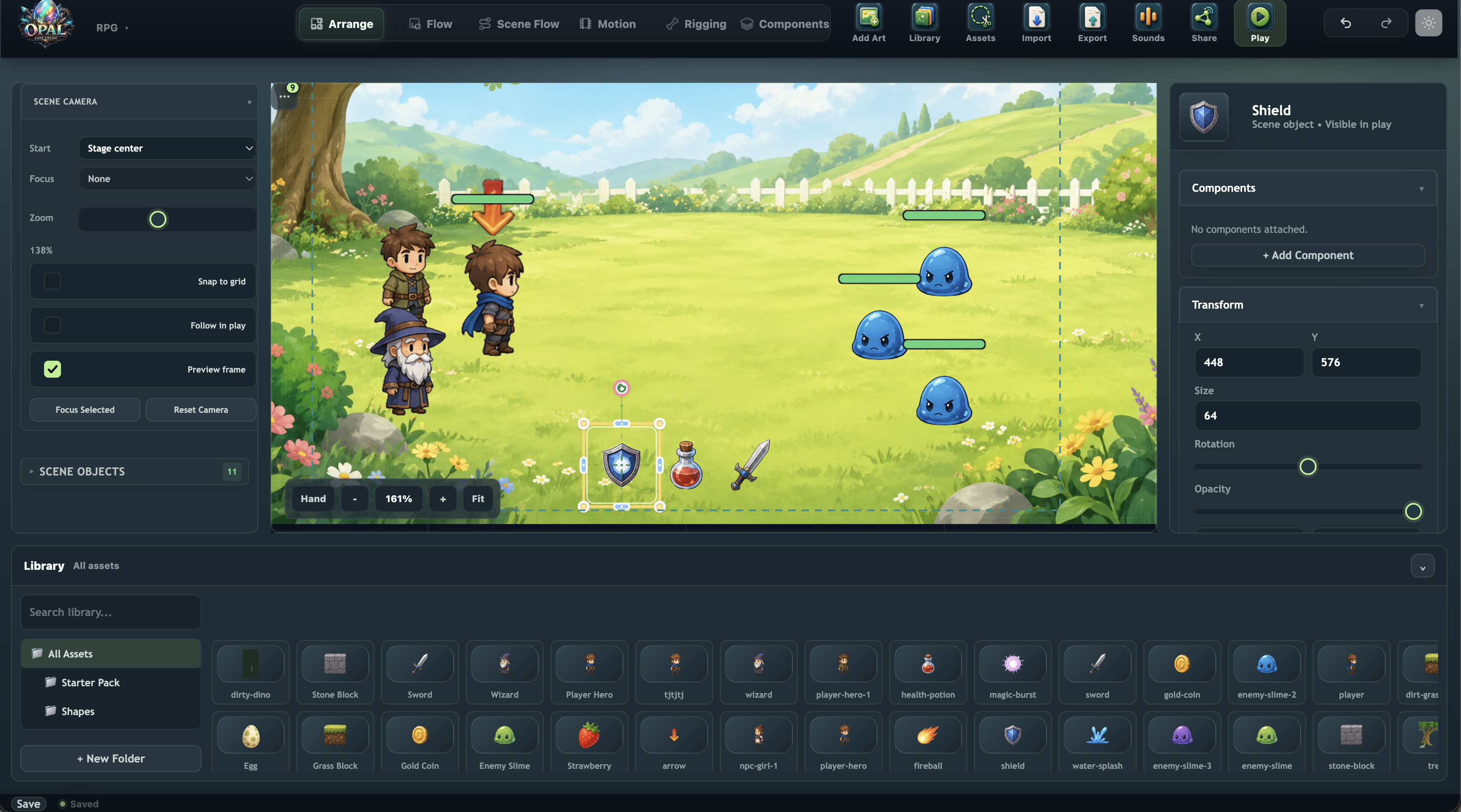
Top Bar
Left to right:
| Area | Purpose |
|---|---|
| Opal logo | Site/editor home anchor |
| File | Save, import/export, open project, publish to arcade |
| Project picker | Switch, create, rename, or delete projects |
| Scene picker | Switch, create, duplicate, reorder, or delete scenes |
| Variables | Edit project-wide GameState definitions |
| Workspace tabs | Switch editing mode |
| Play controls | Play in viewport, fullscreen, stop, stats |
| Undo / redo | History buttons |
| Add | Import art, library assets, cutouts, and sounds |
| Help | Online tutorials/docs, console, problems, about |
| Share | Multiplayer room setup |
| Theme | Light/dark toggle and palette customizer |
| Account | Sign-in state and account menu when hosted |
File Menu
Use File for project I/O and publishing:
| Command | Use |
|---|---|
| Save | Force the current project to save now |
| Import Scene... | Import a scene JSON or compatible scene file |
| Open Project... | Open a .opal project bundle from your computer |
| Export Scene | Download the active scene as JSON |
| Export Game | Download the full project as a .opal bundle |
| Publish to Arcade... | Publish a playable web build through the hosted portal |
Add Menu
Use Add for assets:
| Command | Use |
|---|---|
| Add Art | Import images and place them in the scene |
| Library | Import images into the asset library without placing them |
| Cutout Tool | Open Asset Studio for crop, outline, padding, shadow, and background removal |
| Sounds | Import or manage audio clips |
Workspaces
Click a tab to change what you are editing. The stage and panels adapt to the current workspace.
| Tab | Workspace | Primary use |
|---|---|---|
| Arrange | Scene layout | Place objects, hierarchy, transform gizmo, inspector |
| Object Flow | Per-object Flow | Visual scripts attached to the selected object |
| Scene Flow | Scene/project Flow | Global scene rules, transitions, startup logic |
| Motion | Motion | Keyframe object properties and drive Motion Machine states |
| Sound | Sound Canvas | Compose, process, preview, and bake WAV sound effects |
| Art | Art Canvas | Slice sheets, assemble frames, preview animation, save .ssb bundles |
| Rigging | Skeleton Studio | Bones, slots, IK, mesh weights, skins, skeleton clips |
| Components | Component Studio | Browse built-ins and author project components |
| Scripts | Script editor | Project JavaScript helpers |
| UI | UI designer | HUDs, menus, buttons, labels, UI layers |
Arrange is the home base. Most projects bounce between Arrange, Object Flow, Art, Sound, Motion, Components, and Play.
Arrange Workspace
Stage
The stage is the main scene canvas.
- Click an object to select it.
- Drag to move it.
- Use handles for scale and rotation.
- Scroll or pinch to zoom.
- Pan with the supported trackpad/mouse gesture for your platform.
- Press Q to toggle the radial quick-tools when an object is selected.
Scene Hierarchy
The left panel lists objects in a tree.
- Click to select.
- Drag to reorder or reparent.
- Multi-select with
Ctrl/Cmdplus click. - Use the context menu for duplicate, delete, group, rename, and related actions.
- Select the scene root for scene-level inspector fields.
The same left drawer also hosts the Assets tab.
Inspector
The right panel edits the current selection:
- Transform
- Object properties
- Art and image assignment
- Interaction settings
- Components and component fields
- Object variables
- Motion or skeleton summaries
- Prefab actions and overrides
With multiple objects selected, shared fields show mixed values until edited.
Workbench Dock
The bottom dock can host:
| Panel | Use |
|---|---|
| Assets | Browse and place library items |
| Graph | Inspect relationships and dependencies |
| Console | Runtime/editor messages |
| Problems | Validation warnings and repair hints |
Layouts are saved per workspace, so the panels you use in Art do not have to match Arrange or Object Flow.
Object Flow And Scene Flow
Object Flow opens a node graph for the selected object. Scene Flow uses the same graph UI for scene-wide rules.
You will see:
- Graph canvas
- Node catalog
- Node and wire inspector
- Rule/event lists
- Live Flow overlay in Play mode
Each rule starts from an event such as On Tap, On Scene Start, collision, timer, or custom event. Details: Visual scripting.
Art Workspace
Art Canvas is a graph board for sprite animation assets:
Image -> Slice Sheet -> Animation -> Preview -> Save .ssbUse it to:
- Slice sprite sheets.
- Assemble loose frame images.
- Re-time existing
.ssbbundles. - Bake Flip, Tint, Outline, Order, and Bake Scale variants.
- Register jittery frames with onion-skin previews.
- Save reusable sprite sequence bundles.
Details: Art Canvas.
Sound Workspace
Sound Canvas is a graph board for audio assets:
Sample → Trim → Normalize → Preview
                         → Save → coin_pickup.wav
Use it to:
- Clean up imported clips (trim, fade, normalize).
- Layer samples with Mix.
- Generate synth tones and noise textures.
- Record mic takes and bake them to the library.
- Preview waveforms before saving.
- Bake variation takes from one pipeline.
Details: Sound Canvas.
Motion Workspace
Motion animates object properties such as position, rotation, scale, opacity, and visual state. It includes timelines, clips, easing, onion skinning, and Motion Machine state transitions. Use Motion when the object moves through the scene or changes transform over time.
Details: Motion and rigging.
Rigging Workspace
Rigging, also called Skeleton Studio, is for bone-based character animation:
- Setup bones, slots, skins, IK, meshes, and weights.
- Animate poses and clips.
- Save finished characters as reusable assets.
Components Workspace
Component Studio lists built-in and project-authored components. Attach components to objects from Arrange -> Inspector -> + Add Component. Component fields, events, actions, and conditions become available in Flow.
Tutorial: Getting started with components.
UI Workspace
The UI workspace designs in-game HUDs and menus. Widgets include buttons, labels, panels, bars, and other UI elements. UI can bind to GameState and object state during Play.
Details: UI and HUD.
Scripts Workspace
Scripts are optional JavaScript helpers for advanced or reusable logic. Use them when many Flow nodes would be harder to maintain than a small named function.
Details: Scripts.
Asset Library
Open the Assets tab in the left drawer.
| Folder | Typical contents |
|---|---|
| Images | Sprites, backgrounds, tiles, icons, particles |
| Characters | Rigged character assets |
| Blueprints | Prefabs and reusable object templates |
| Audio | Sound effects and music (including WAVs baked in Sound Canvas) |
| Sprite sequences | .ssb bundles from Art Canvas |
Click or drag assets to place or assign them. Right-click for rename, delete, and organization actions.
Keyboard Shortcuts
Shortcuts are disabled while typing in a text field.
| Key | Action |
|---|---|
Ctrl+Z / Cmd+Z | Undo |
Ctrl+Y / Ctrl+Shift+Z | Redo |
Ctrl+D / Cmd+D | Duplicate selection |
Ctrl+A / Cmd+A | Select all in hierarchy |
Delete / Backspace | Delete selection |
Arrow keys | Nudge selection 1 px |
Shift+Arrow | Nudge 10 px |
Esc | Cancel gesture / deselect / collapse radial menu |
Q | Toggle radial quick-tools |
P | Toggle pivot edit mode (grab the pivot; Esc or P again to exit) |
C | Toggle collider shape editor when a collider is selected |
On the Arrange stage, drag empty space to box-select; hold Shift while dragging to add to the current selection. Pan still uses Space, Alt, or the middle mouse button.
In Object Flow, Scene Flow, Art Canvas, and Sound Canvas, Delete removes selected graph items instead of scene objects.
Multiplayer / Share Panel
Open Share to connect to a WebSocket room for optional live sessions. Offline/local editing is the default; multiplayer is an advanced sharing feature, not required for publishing to the arcade.